VerbTrainers for the iPhone
Spanish, French, German and Italian Verbtrainers are available for the iPhone!
The screenshots below show Verbos, the Spanish Verbtrainer; the Italian, French and German Verbtrainers are identical except, of course, they have different verbs.
| Drill Mode | |
|
The Drill View of Verbos. Verbos presents an infinitive, a tense and a pronoun for a Spanish verb. You can then say the answer to yourself and touch the answer button to see if you got it right. Touch the button at the bottom to see the answer. |
|
When you touch the answer button. Verbos presents the answer. When you've seen the answer, touch the button again for the next quiz. Verbos chooses verbs randomly from the verb forms of over 500 verbs, or you can select what forms and types of verbs to quiz from. You can also create lists of verbs to choose from. |
|
You can have Verbos show you, at the time it shows the answer or at the time it shows the quiz, the translation of the infinitive, the translation of the verb form, or no translation, at all. Choose your preference from the "translation" button menu. Shown at left is the selection to see the infinitive translations. |
|
An answer, with the infinitive translation shown. |
 |
|
 |
Selecting the verb tense translation translation. |
 |
An answer with the verb tense translation translation. |
 |
Selecting No translation |
 |
An answer with no translation. |
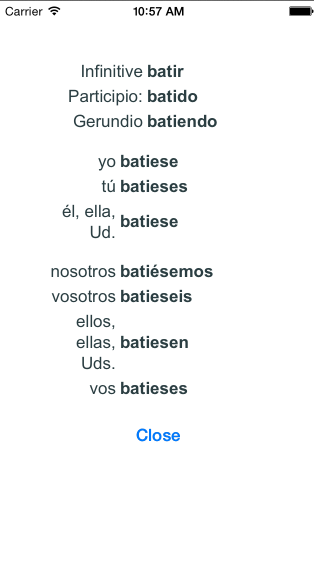 |
While you're on a verb, touching the button titled, "Tense conjugation" presents the conjugation of the verb and tense that is on the Quiz View at that time. Touch the close button to dismiss the Tense Conjugation popover. |
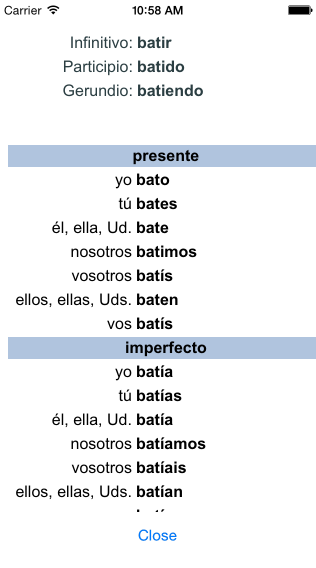 |
If you touch the button titled, "Full Conjugation" you'll see a screen presenting the full conjugation for the verb on the Quiz View. Again, touch anywhere to dismiss the popover. If you want to see the conjugation of a specific verb, you can search for it using the "Other" button at the top of the Quiz View. |
 |
If you're using All Verbs to quiz from, you can add the infinitive on the screen to a verb list by touching the "List +" button. You will see a list of existing verb lists; touch the one to which you want to add this infinitive. Note that the verb list must already exist; you can't start a new list from here. If you are using a verb list, touching this button removes the verb on the Quiz View from the list. The button's caption ("List -") indicates that. |
Verb Selection Criteria | |
 |
You can narrow the types of verbs Verbos will use for quizzes in five different ways: -Simple Verb Tenses -Compound Verb Tenses -Verb Types -Verb Endings -Person/Number To narrow the selection of verbs, touch one of the five criteria, then touch the row of a type you want included. A check-mark indicates that verb forms of this type will be included. Touching "Use all..." selects or deselects all verbs on that page. The following screens show this. |
 |
Selecting Simple Verb Tenses for quizzes. |
 |
Selecting Compound Verb Tenses for quizzes. |
 |
Selecting Verb Types for quizzes. |
 |
Selecting Verb Endings for quizzes. |
 |
Selecting Persons/Numbers for quizzes. |
| Verb Lists | |
 |
Verb Lists You can create and save any number of verb lists and then select a verb list for quizzing. This gives you great flexibility in strengthening areas you may be having trouble in. This screenshot shows what you'll see when you touch the "Verb Lists" button on the Quiz View. To create a new verb list, touch the "Create New List" row. To edit an existing list, touch the row containing the list name. If you want to delete a list, swipe the list name from right to left, and then confirm the deletion. Note, this is not "un-doable;" when you delete a verb list, it's gone. |
 |
When you add or edit a verb list, you'll see this screen. You can remove a verb from the list by touching the red icon on the left. You then confirm the deletion. This removes the verb from the list but does not, of course, remove it from the list of infinitives. You can add the verb back into the list. To add verbs, touch the "Add Verb" button. |
 |
The "Add Verbs" screen. Verbs already in the verb list will have a checkmark to the right of the infinitive. Touching an un-checked infinitive adds it to the verb list; touching a checked infinitive removes it from the verb list. |
 |
The "Add Verbs" screen, with only verbs starting with "BA" which has been typed into the searchbar, showing in the list. |
 |
You can toggle back and forth between seeing the infinitives in the Verbtrainers language and seeing them in English by touching the button at the bottom of the screen. Here is the list in English. |
| Test Mode | |
 |
In Test Mode, you can set up a test for yourself, score your answer, and save the results of the test for review and seeing your progress. The Test Mode is like the Drill mode, in that you get a new verb form without an answer, think or say what you think the answer is, then touch the Answer button to see the correct answer. Then you score how you did, by touching either the Right or Wrong button. |
 |
You can set the type of test you want. A timed quiz, with a set number of verbs; an untimed test, where you set the number of verbs you wish to be tested on; or a timed-only test, where you set the length of the test. In that case, the test will be for as many verbs as yu can answer in the time limit. |
 |
When you press the 'Start Test' button, Verbos starts the test using your Test Settings. You will see a small progress indicator at the left end of the middle row, showing how much longer the test will be, in seconds and/or number of verbs, as appropriate. |
 |
After you've seen the answer for a test verb, you press the 'Right' or 'Wrong' buttons to score your answer. |
 |
When the test completes, you will see your scores for that test. You can save the result, if you want to see your progress over time. |
 |
Pressing the "Test History" button shows you the results of all the tests you've saved, with the most recent at the top. Pressing the "Clear History" button does just that: all history records will be cleared. |
| Other | |
 |
The "Other Options" button provides several capabilities: -View Conjugation: you can see the full conjugation of any verb in the Verbos database; -Sample Conjugation: shows a sample conjugation of translations, so you can see how any Spanish verb form translates to English; -Help: shows a short set of Help instructions; -Info: Some information about Verbos. -Contact Verbtrainers: allows you to send me an email with suggestions for improvements or bugs you've noticed. -Changes: a quick explanation of changes in the current version. |
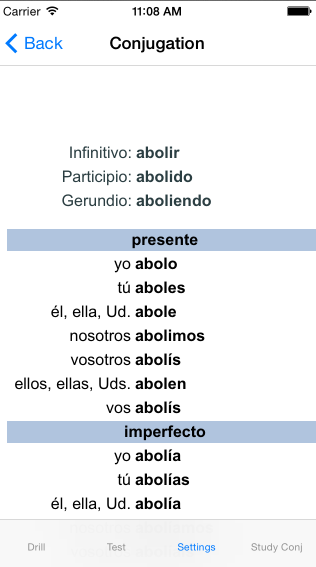 |
View Conjugation Touch an infinitive to see the full conjugation for that infinitive. You can search for an infinitive by entering it in the search field; as you enter characters, Verbos will narrow the list to infinitives starting with the entered characters. |
 |
The full conjugation for the infinitive abrir. |
 |
A reduced list, from the characters entered in the search field ('ba'). |
 |
The Sample Conjugation |
 |
Info |
 |
Help |
 |
Sending Verbtrainers Support an email. |
 |
Changes in the current version. |


